Microsoft 365 storage is full: how to find what is eating your quota
When Microsoft 365 warns that your SharePoint storage is nearly full, the reflex is to buy more. Extra storage is cheap per gigabyte, so it feels like the easy fix. It is also the fix that never ends, because the things filling your tenant keep filling it. Buying capacity treats the symptom and leaves the cause running.
The better first move is to find out what is actually using the space. In almost every tenant the answer is the same short list, and most of it is reclaimable.
How Microsoft 365 storage actually adds up #
Your tenant has a pooled SharePoint quota, calculated from a base amount plus a per-licensed-user allowance. Every SharePoint site and every Team (which is backed by a SharePoint site) draws from that pool. OneDrive is a separate per-user allowance, but ex-employee OneDrives quietly count against your costs until someone deletes them.
The usual culprits, in rough order of how often they surprise people:
- Version history. SharePoint keeps many versions of every file by default. A single large file edited often can hold dozens of copies. Across a tenant this is frequently the single biggest consumer of space.
- Ex-employee OneDrives. When someone leaves, their OneDrive is retained for a period and then, in many tenants, simply forgotten. Years of these add up fast.
- Abandoned Teams and sites. A Team created for a project that ended in 2022 still holds every file anyone ever dropped in it.
- Large media and archives. Video, raw images, ISO files and zipped backups that were never meant to live in SharePoint long term.
- Recycle bins. Deleted does not mean gone. The two-stage recycle bin holds content for up to 93 days and counts toward usage the whole time.
Find the hogs before you reclaim anything #
You want a ranked list, biggest first, broken down by site and by OneDrive owner. The SharePoint admin centre shows storage per site and the active-sites report can be sorted by size, which is a reasonable starting point. For OneDrive, the per-user usage report tells you which accounts, often former employees, are holding the most.
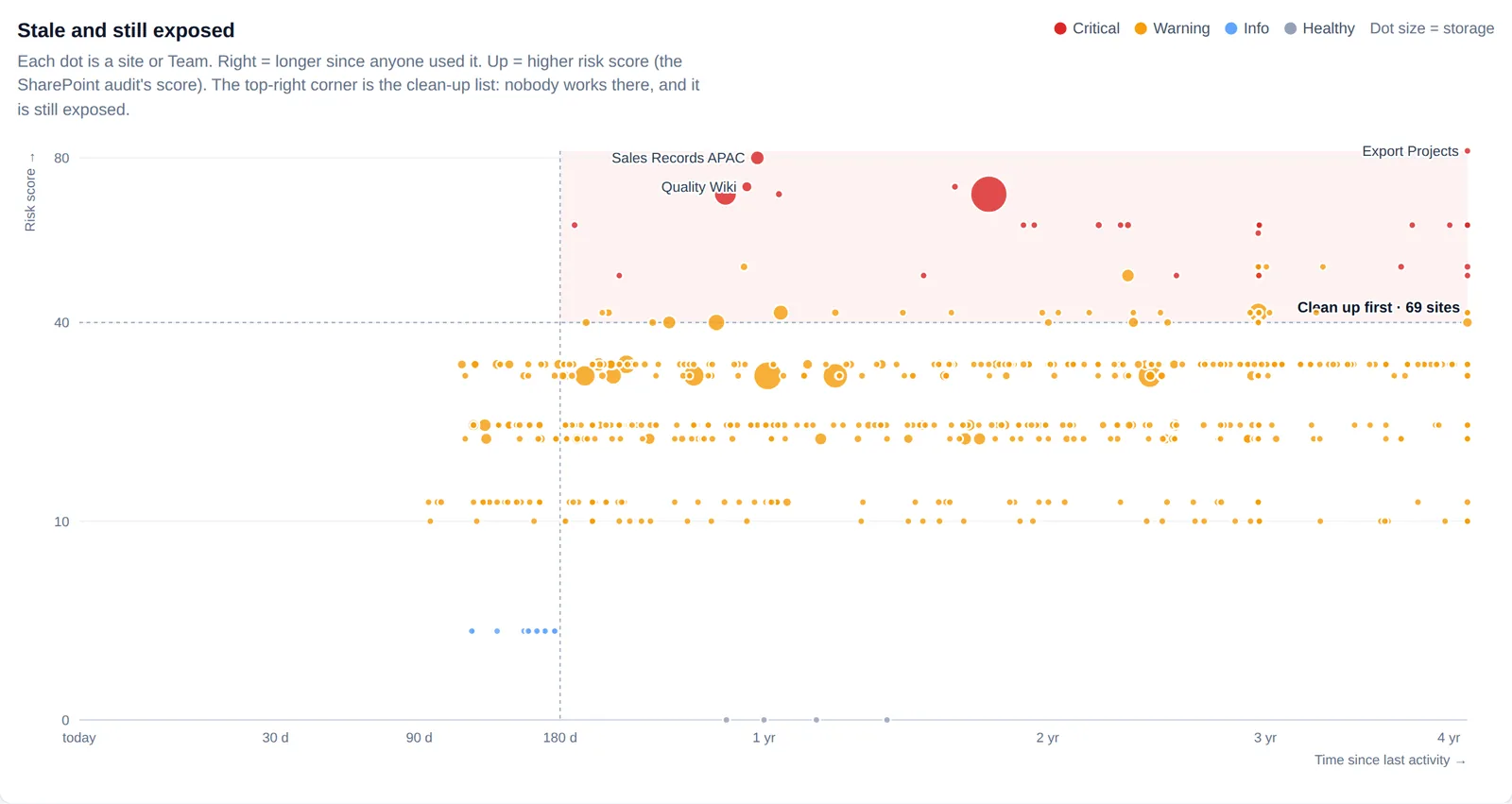
What the built-in reports do not do well is tie usage to decisions: which sites are inactive, which OneDrives belong to people who left, which storage is version history you could trim. A read-only scanner that flags ex-employee OneDrives, inactive Teams and storage outliers in one view turns the raw numbers into a to-do list. Olyteck Cyber reports this alongside its security findings, because the same scan that finds oversharing also sees what is oversized.
The other half sits in personal OneDrives, where only the owner can decide. In Cyber's employee page (Mon espace), each person sees their biggest files and folders, and their identical copies: files of 1 MB or more with the same size and the same content fingerprint, the hash Microsoft already computes for every file, whatever their names. The page shows the space each group of copies wastes and flags copies that are still shared. Nothing is read: fingerprints are compared, and deleting happens in OneDrive, where it goes to the recycle bin.
What is safe to reclaim, and in what order #
Reclaim in order of safety, not size. The biggest number is tempting, but a reversible change you can make today beats a risky one you will keep postponing.
- Empty the recycle bins of sites you have already cleaned. Immediate, safe, often surprising.
- Trim version history with a sensible retention limit (for example, keep the most recent 50 versions instead of 500). Set it as a policy so it keeps working.
- Offboard ex-employee OneDrives properly: hand off anything needed, then delete. This is usually the largest one-time win.
- Archive or delete dead Teams and sites. Inactive for more than 180 days with no owner is a strong archive candidate.
- Move true cold archives (old video, backups) out of SharePoint to storage built for it.
Make it a habit, not a fire drill #
Storage fills the same way sharing drifts: a little every week. The teams that never hit the wall do a short quarterly review. They look at the top ten sites by size, the OneDrives of recent leavers, and the version-history policy, and they act on the new outliers. Fifteen minutes a quarter is far cheaper than another capacity purchase, and it keeps the tenant fast and tidy as a side effect.
A quick checklist #
- Version-history retention capped by policy
- Ex-employee OneDrives offboarded and deleted on a schedule
- Inactive Teams and sites archived or removed
- Recycle bins emptied after cleanups
- Cold archives moved off SharePoint
- A quarterly storage review on the calendar
Buying more storage is sometimes the right call. It just should not be the first call. Find what is filling the tenant, reclaim the easy wins, and you will often discover you did not need the upgrade at all.
Read next #
- Anonymous sharing links in Microsoft 365: find every "anyone" link and fix the risky ones first
- Copilot prompt hacking: the questions that quietly expose Microsoft 365 data
- How to answer a security questionnaire (SIG, CAIQ) faster
- An employee leaves: what happens to their OneDrive, shares and access?
One useful Microsoft 365 email a month
New guides, findings from real tenants, and the occasional checklist. No sales sequence, unsubscribe in one click.