Anonymous sharing links in Microsoft 365: find every "anyone" link and fix the risky ones first
Key takeaways
- An "anyone with the link" share in SharePoint or OneDrive works without sign-in, does not expire by default, and can be forwarded to anyone, which makes it an uncontrolled disclosure under GDPR.
- In the SharePoint admin centre, under Policies and then Sharing, you can set the default link type to "Specific people" and restrict, disable or set an expiry on "Anyone" links before you start auditing the backlog.
- SharePoint admin reports only give a site-level picture, so a per-file inventory of anonymous links means either a Microsoft Graph scripting project or a read-only scanner that walks the tenant for you.
- Triage the results by blast radius rather than by count: shared folders and whole libraries, sensitive sites such as finance, HR and legal, and links owned by ex-employees come first.
- Sharing posture drifts as people create new links every week, so a 15-minute monthly re-scan keeps a tenant cleaner than one annual cleanup.
If you run IT for a company on Microsoft 365, the single most common way data leaves the building isn't a dramatic breach - it's an "anyone with the link" share that someone created two years ago and forgot. These links work without sign-in, don't expire by default, and are trivial to forward. From a GDPR standpoint they are an uncontrolled disclosure waiting to be noticed.
This guide shows how to find them, decide which ones matter, and close the gap.
Why anonymous links are the quiet risk #
A standard SharePoint or OneDrive share can be one of three kinds:
- Specific people - scoped to named users; the safest.
- People in your organisation - anyone signed in to your tenant.
- Anyone with the link - no sign-in, no audit of who opened it. This is the one to hunt.
The problem isn't that anonymous links exist; sometimes they're intentional. The problem is that nobody has an inventory of them, so you can't tell a deliberate share of a public brochure from an accidental share of a folder full of payroll exports.
Step 1 - Turn off "anyone" links going forward (if you can) #
Before auditing the backlog, stop the bleeding. In the SharePoint admin centre, Policies → Sharing, you can set the default link type to "Specific people" and restrict or disable "Anyone" links org-wide or per site. Even setting an expiry on anonymous links (e.g. 30 days) dramatically shrinks the long tail.
Change the default first. Otherwise every audit you run is chasing a number that keeps growing.
Step 2 - Inventory what already exists #
The exposure already created won't fix itself. You have a few options:
- SharePoint admin reports give a coarse, site-level picture but not a per-file list of anonymous links.
- Microsoft Graph can enumerate sharing permissions per drive item, but writing and running that across every site, OneDrive and Teams library is a real scripting project - and you have to store and re-run it to track drift.
- A read-only scanner that walks the tenant via Graph and reports every anonymous link, who owns it, and how exposed it is, without you writing any PowerShell.
Whichever route you take, the output you want is the same: a list of items shared anonymously, sortable by sensitivity and age.
Step 3 - Triage by blast radius, not by count #
A list of 4,000 anonymous links is paralysing. Sort by what actually matters:
- Scope - a shared folder or whole library is far worse than a single file.
- Sensitivity - finance, HR, legal and customer-data sites first.
- Age and owner - links from ex-employees, or older than your new expiry policy, are prime candidates to revoke immediately.
Fix the top of that list and you've removed most of the real risk in an afternoon.
That leaves the question IT cannot answer alone: is this link still needed? The person who created it knows in ten seconds. For the rest of the list, the method that lasts is to send each owner their own links and let them close or confirm, instead of deciding for them. We describe that method in how to get sharing cleaned up by the people who created the links.
Step 4 - Make it a monthly habit #
Sharing posture drifts. New links appear every week as people collaborate. The teams that stay clean don't do one heroic cleanup - they re-scan monthly, watch the trend line, and act on the new top-of-list items. A 15-minute monthly review beats an annual fire drill.
A quick checklist #
- Default link type set to "Specific people"
- Expiry enabled on any "Anyone" links you still allow
- A current inventory of existing anonymous links
- Top exposures (folders, sensitive sites, ex-employee shares) revoked
- A recurring monthly re-scan on the calendar
Anonymous sharing is rarely malicious and almost always invisible until someone looks. The fix is mostly about visibility - once you can see the list, the decisions are easy.
How we approach this at Olyteck #
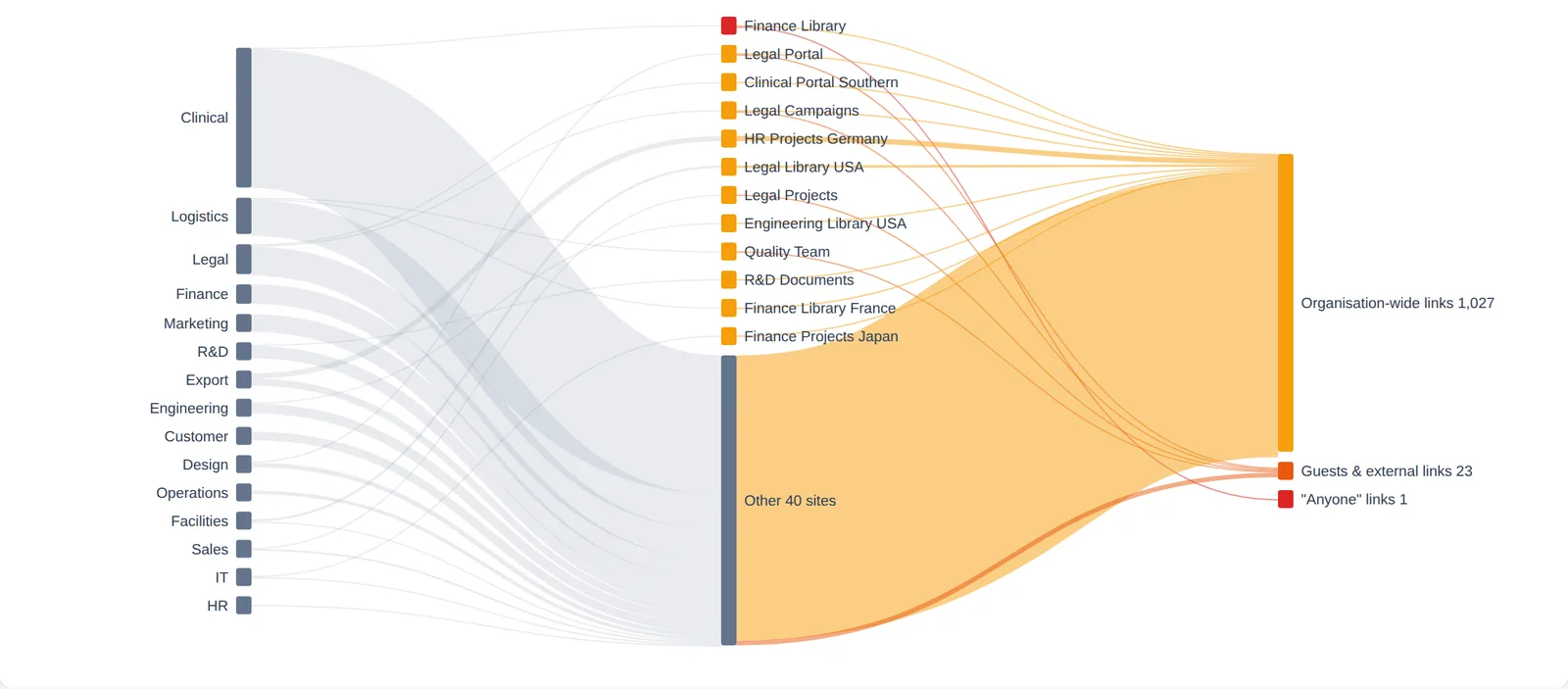
Olyteck Cyber scans SharePoint, OneDrive and Teams read-only and lists every "anyone" link with its scope and owner. The access map shows in one picture where access leaves the company: from the owning department to the sites, then to organisation-wide links, guests and "anyone" links. We count findings, never files: document contents are never read or copied.
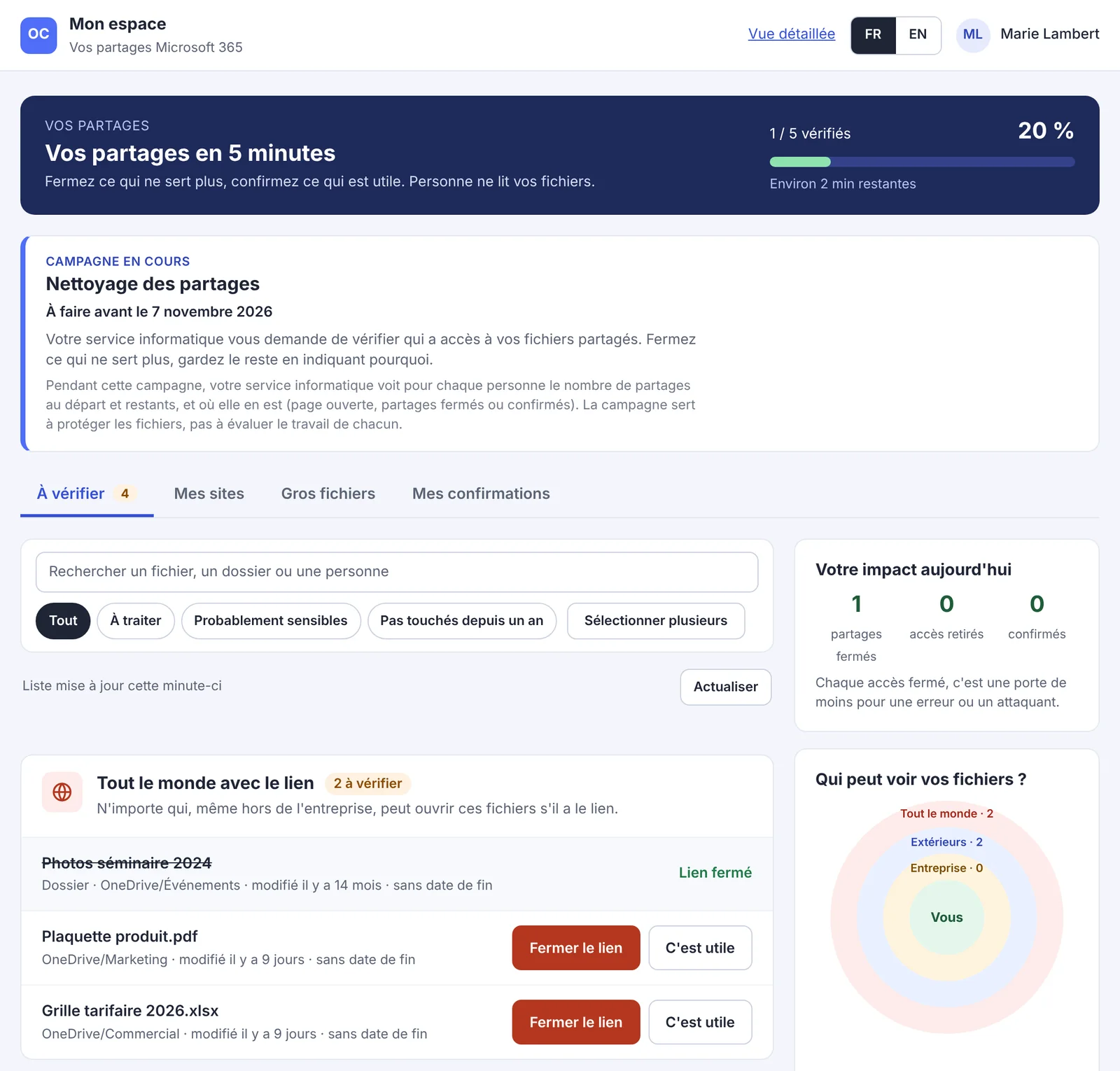
Then, instead of one more list for IT, a clean-up campaign sends each owner their links in Microsoft Teams: a notification, a direct message, then the Mon espace page where they close or confirm each link in one click, with their own Microsoft rights. IT follows progress by department and keeps the before/after for the auditor.
FAQ #
How do I see who has access to a SharePoint file? #
Open the file's sharing details and check which of the three link types is in use: specific people, people in your organisation, or anyone with the link. The first two are scoped to named users or to signed-in accounts in your tenant, so you can see exactly who is covered. An "anyone with the link" share is the exception, because there is no sign-in and no audit of who opened it, so the file's own permissions cannot tell you who actually has access.
Do anonymous sharing links in Microsoft 365 expire? #
Not by default. An "anyone with the link" share stays live until somebody revokes it, which is why links created years ago are still working today. You can change this in the SharePoint admin centre by enabling an expiry on any "Anyone" links you still allow, for example 30 days, which dramatically shrinks the long tail of forgotten shares.
Will disabling anonymous sharing break links that already exist? #
Changing the default link type and restricting "Anyone" links stops new anonymous shares from being created, but it does not clean up the exposure already out there. The backlog will not fix itself, so treat the policy change and the audit as two separate jobs. Change the default first, otherwise every audit you run is chasing a number that keeps growing.
How do I find every anonymous link across a whole tenant? #
SharePoint admin reports give you a coarse, site-level picture rather than a per-file list, so they are not enough on their own. Microsoft Graph can enumerate sharing permissions per drive item, but running that across every site, OneDrive and Teams library is a real scripting project, and you have to store and re-run it to track drift. The alternative is a read-only scanner that walks the tenant via Graph and reports every anonymous link, its owner and how exposed it is, without you writing any PowerShell. Either way, the output you want is the same: a list of anonymously shared items, sortable by sensitivity and age.
Read next #
- SharePoint Advanced Management ships with Copilot: what it covers, and what it does not see
- Microsoft 365 storage is full: how to find what is eating your quota
- SMS and voice MFA end on 1 February 2027: find the accounts that will be blocked
- An employee leaves: what happens to their OneDrive, shares and access?
- Build your own Microsoft 365 audit, with or without AI: when it is the right call
One useful Microsoft 365 email a month
New guides, findings from real tenants, and the occasional checklist. No sales sequence, unsubscribe in one click.