Clean up Microsoft 365 sharing: let the people who created the links fix them
Key takeaways
- IT cannot judge whether 40,000 shares are still needed; the person who created the link knows in ten seconds.
- Microsoft's site access review goes to site owners by email, but it does not cover OneDrive, where everyone's personal links live.
- A campaign that works follows five rules: a short scope, an announcement from management, the request where people already work, two possible answers, and a fixed end date.
- Measure by department and keep the before/after: that is what an auditor calls an access review.
- Never rank people: tell staff representatives what is kept, and show totals only.
On a mid-sized Microsoft 365 tenant, a first scan quickly surfaces hundreds of sharing links, sometimes thousands. "Anyone" links, folders shared with a contractor who left two years ago, files open to the whole company. The list is right. The problem is what comes next: who is going to work through it?
IT cannot decide whether the "Tender 2024" folder shared with an outside firm is still needed. The person who created it knows in ten seconds. Here is how to organise the work so the right people do it, without IT spending weeks on it, and with evidence an auditor accepts.
Why IT cannot sort it out alone #
Three reasons, none of which depends on how good the IT team is.
- Volume. Nobody works through 4,000 rows. Even sorted by risk, as we suggest for anonymous sharing links, hundreds of cases remain where only the business knows.
- Judgement. Closing a link that is still used breaks a team's work, and IT takes the blame. Keeping one that is not leaves the exposure in place. Either way, IT decides without knowing.
- Time. Shares are created again every week, because people collaborate. A big clean-up done by IT is out of date six months later.
The answer is not a better filter. It is to give the decision back to the person who knows, and keep for IT what IT does well: organise, verify, keep the evidence.
What Microsoft already offers #
With SharePoint Advanced Management, included with Microsoft 365 Copilot licences, an administrator can start a site access review from the data access governance reports: the owners of the sites concerned receive an email, open a review page, remove or change access, then send their comments back to the administrator. It is useful, and we cover its scope in what SharePoint Advanced Management covers and what it misses.
Three limits matter for a clean-up campaign:
- OneDrive is not covered. The review is for SharePoint sites, and many "Anyone" links live in personal OneDrives.
- The request arrives by email. A message from a technical sender asking people to click to "review permissions" looks like phishing, which is exactly what your awareness training teaches people to ignore.
- The site owner is not always the author of the link. They inherit links created by others, with no more context than IT.
The method in five rules #
1. A short, understandable scope #
Start with what really exposes data: "Anyone" links, then shares outside the company, then links open to the whole organisation. Start with OneDrive, where every link has a single author. A two- to five-week campaign on a clear scope beats a review of everything, forever.
2. An announcement from management, and staff representatives informed #
The first question an employee asks is "why me, and who is watching?". A short note signed by management answers it before it is asked: the goal is to reduce data exposure, not to monitor work. Inform your staff representatives or works council where you have one, add a clause to the IT charter, and say what IT can and cannot see.
3. The request where people already work #
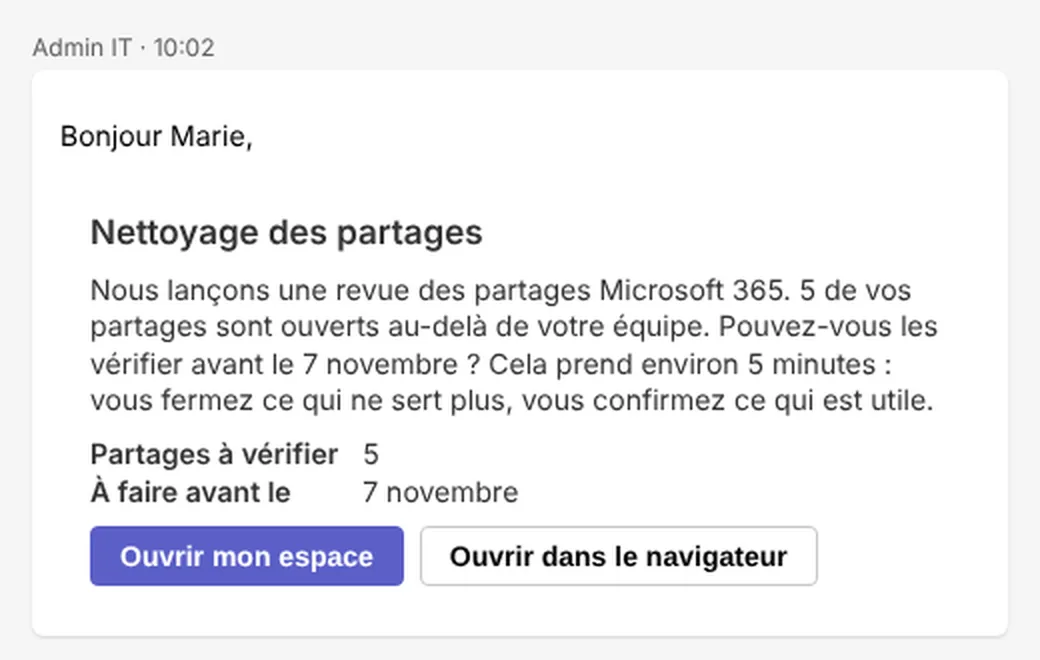
If your teams live in Teams, the request should arrive there: a notification, a direct message with a button, a page that opens inside Teams. No link to an unknown website, no extra password. That is what gives the clean-up a chance, rather than one more email to ignore.
4. Two possible answers, and a reason #
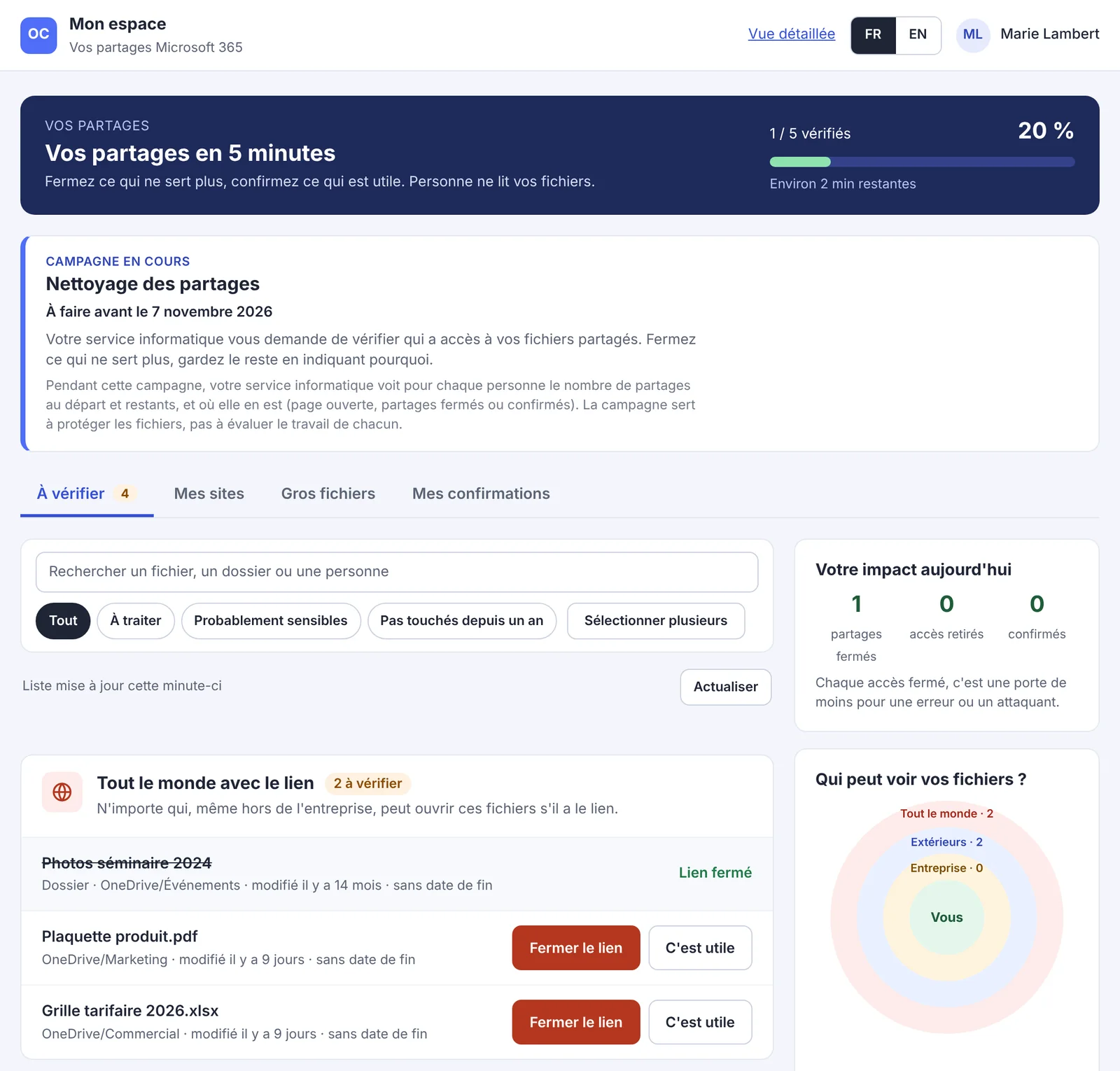
For each link, people should be able to answer in one click: close the link, or it's useful. A confirmation carries a reason and an end date, then comes back for review: a kept access is a dated decision, not something forgotten. Let people select several links at once, or those who shared a lot will give up.
5. Short reminders and a fixed end date #
Two or three reminders in working hours, never once nothing is left to do, and an end date everyone knows. At the close, run the same scan again with the same rules and the same people: that is your before/after.
Measure and prove #
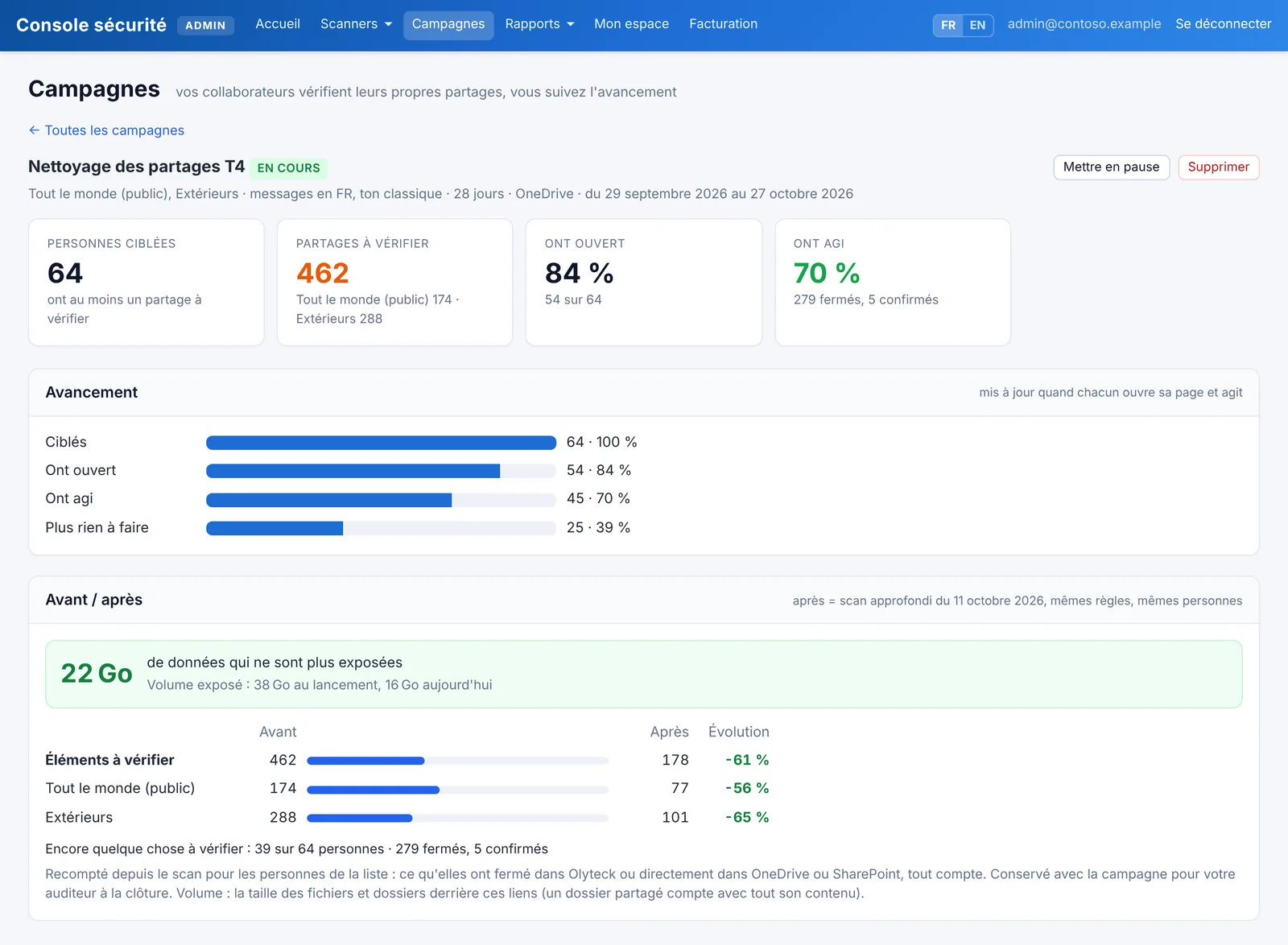
Follow the campaign as a funnel, by department: people targeted, opened, acted, nothing left to do. The number management cares about is the exposure removed (links closed, data volume no longer exposed), not the number of messages sent.
For the auditor, the file has three parts: the dated starting extract, the named decisions (closed or kept, by whom, when, why) and the closing scan. ISO 27001 controls A.5.15 and A.5.18 and NIS2 Article 21 talk about access control and access review: this is exactly that.
Traps to avoid #
- Ranking people. A "top ten sharers" table turns a security campaign into a monitoring tool. Show totals by department, never a league table.
- A campaign with no end. Without a closing date, reminders become noise and nobody knows when it is over.
- Doing everything at once. Sites, OneDrive, guests and apps in one wave is too much to explain the first time.
- Forgetting leavers. Links created by someone who has left have no author to answer: handle them separately, with the Microsoft 365 offboarding checklist.
How we approach this at Olyteck #
Olyteck Cyber first maps your shares, read-only, without reading your files. Then the administrator launches a campaign in a few clicks: the sources (OneDrive, SharePoint sites and Teams), the link types, a duration of 14 to 35 days, the tone (classic, friendly or playful) and the language. Olyteck sends each owner their list in Teams, reminds them in working hours and stops as soon as nothing is left.
Each employee works through their links in Mon espace, a page that opens inside Teams: close, or confirm with a reason, one at a time or several at once, with their own Microsoft rights. The page says plainly what IT can see.
IT follows the funnel by department and gets the before/after at the close. The campaign list is deleted 90 days after the close; only the totals remain as evidence. For a first time without a subscription, the clean-up campaign pack includes 45 days of Cyber, the campaign, the announcement kit and the note for staff representatives.
FAQ #
Won't employees mistake the campaign for phishing? #
That is the first risk when the request arrives by email. In Teams, after an announcement from management and with a page that opens without a new password, the request comes from a tool people already use. Say in the announcement what the message will look like.
What happens if someone closes a link that was still needed? #
The link stops working for everyone who used it. The owner can share the file again in a few seconds, preferably with specific people rather than an "Anyone" link. That is why the decision belongs to the person who knows how the link is used.
Do we need to inform staff representatives? #
In France, yes: a campaign addressed to employees that processes their name, department and actions calls for informing the works council (CSE) and updating the IT charter. Elsewhere, follow your local rules. Present the goal (reducing data exposure), what is kept, for how long, and the fact that no ranking of people is produced.
How long should a campaign run? #
Two to five weeks is enough for a first scope. Beyond that, reminders lose their effect. Several short campaigns, each with its own before/after, work better than an endless review.
Sources #
- Microsoft Learn, Site access review: https://learn.microsoft.com/en-us/sharepoint/site-access-review
- Microsoft Learn, Data access governance reports: https://learn.microsoft.com/en-us/sharepoint/data-access-governance-reports
- Microsoft Learn, SharePoint Advanced Management features in Microsoft Copilot licenses: https://learn.microsoft.com/en-us/sharepoint/sharepoint-advanced-management-features-copilot-license
Microsoft documentation as of 11 October 2026.
Read next #
- Anonymous sharing links in Microsoft 365: find every "anyone" link and fix the risky ones first
- An employee leaves: what happens to their OneDrive, shares and access?
- SharePoint Advanced Management ships with Copilot: what it covers, and what it does not see
One useful Microsoft 365 email a month
New guides, findings from real tenants, and the occasional checklist. No sales sequence, unsubscribe in one click.